

Key Takeaways
Summary
18 items · 10-20 minutes per app
Why Installing an App Is a Privacy Decision
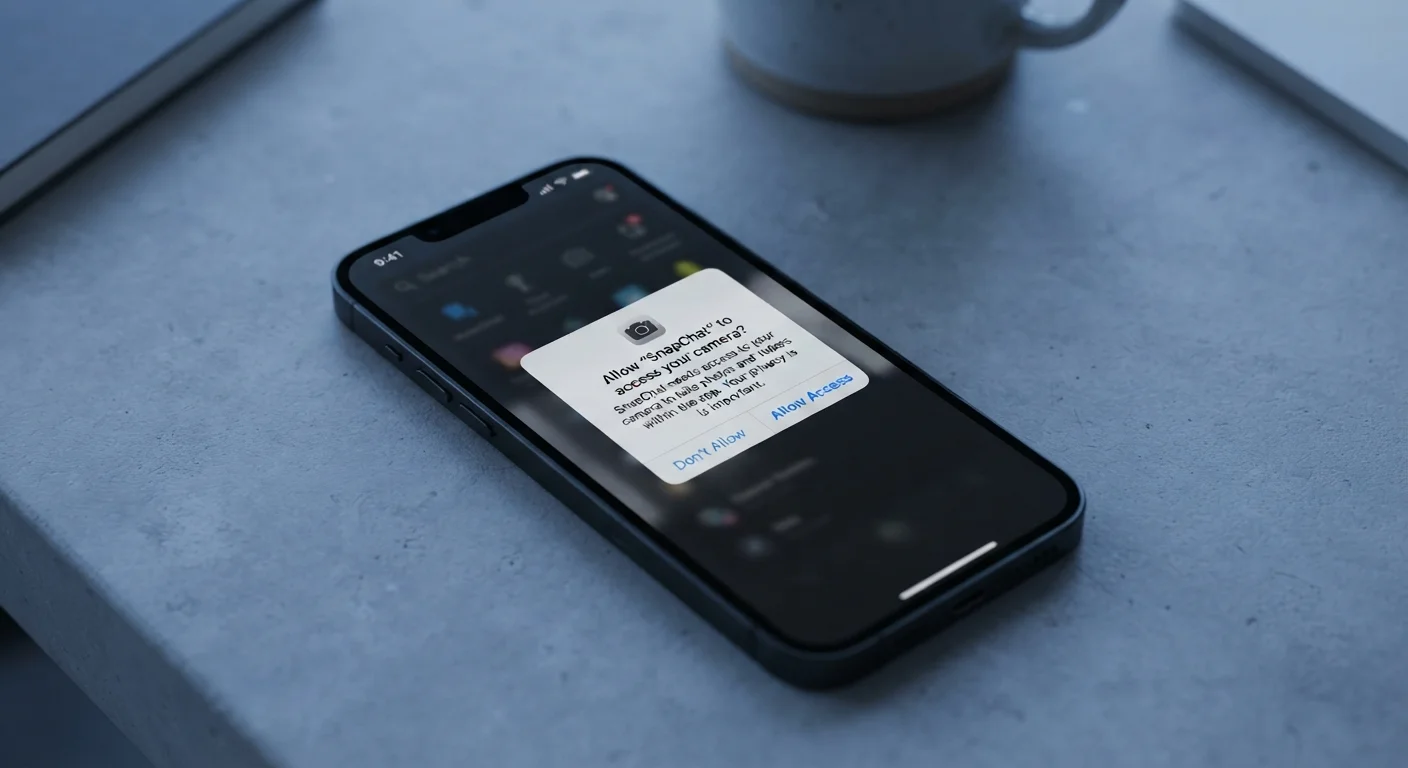
Most people treat installing an app like downloading a file - a quick tap with no lasting consequences. In reality, every app you add to your phone is a piece of software that may access your location, contacts, camera, microphone, or storage. Once granted, those permissions often persist indefinitely in the background.
Official stores like Google Play and the Apple App Store do screen apps before listing them, but approval is not a safety guarantee. Malicious or excessively data-hungry apps have appeared in both stores. A structured pre-install review - one that takes fewer than 20 minutes - can save you from handing over access you'd never knowingly give.
This checklist walks through the questions worth asking before you tap 'Install.' For a deeper look at what individual permissions actually mean in practice, see what common app permissions really grant access to.
Your device's Settings > Apps menu
View and manage permissions for any installed app directly on your phone without downloading anything additional.
Official app store listing page
Access the developer identity, permissions list, privacy policy link, reviews, and download count before installing.
Web browser (for developer research)
Search the developer name and app name for third-party reviews, reported issues, or privacy concerns not visible in the store listing.
Device data-usage monitor
Track background data consumption per app after install to spot unexpectedly high network activity.
How to Use This Checklist
Work through the checklist groups below in order - source verification first, permissions second, post-install hygiene last. Each item is marked as must (non-negotiable), should (strongly recommended), or nice to have (optional but useful). If you hit a 'must' item you can't satisfy, treat it as a reason to pause before installing.
The checklist applies equally to Android and iOS. Some steps differ slightly by platform - for example, iOS labels location access 'Never / Ask Next Time / While Using / Always,' while Android uses similar but distinct wording - but the underlying questions are the same regardless of device.
Permissions Granted Cannot Be Assumed Safe
Many apps request permissions at install that remain active indefinitely - even when you're not using the app. Granting broad access once is not a reversible-only-at-uninstall decision; you can and should revoke permissions through your phone's settings at any time. Check your active permissions list periodically, not just at the moment of install.
If you're also doing a broader cleanup of apps already on your device, a practical guide to organizing your files and apps covers how to audit and remove what you no longer need.
Source & Developer Verification
Reviews & Download History
Permissions Review
Privacy Policy & Data Practices
Post-Install Hygiene
After You Install: Keeping Permissions in Check
Installing an app is the beginning of the relationship, not the end of the review. Permissions you grant at install can be revoked at any time through your device settings - most phones list every app's active permissions in a single menu. It's worth revisiting this list every few months, especially for apps you no longer use actively.
Pay particular attention to apps that request access to location, microphone, or contacts but that you only open occasionally. Many operating systems now notify you when an app accesses your location in the background; take those alerts seriously rather than dismissing them.
Uninstalling Doesn't Always Delete Your Data
Removing an app from your phone stops it from collecting new data, but it does not automatically delete data already collected and stored on the developer's servers. If an app has a data-deletion request process - typically described in its privacy policy - submit that request separately after uninstalling. Without doing so, your data may remain on third-party systems.
For readers who want to track how much time and access they're giving various apps, built-in screen time tools have real strengths and real blind spots - understanding both helps you use them more effectively.