

Key Takeaways
App Permissions
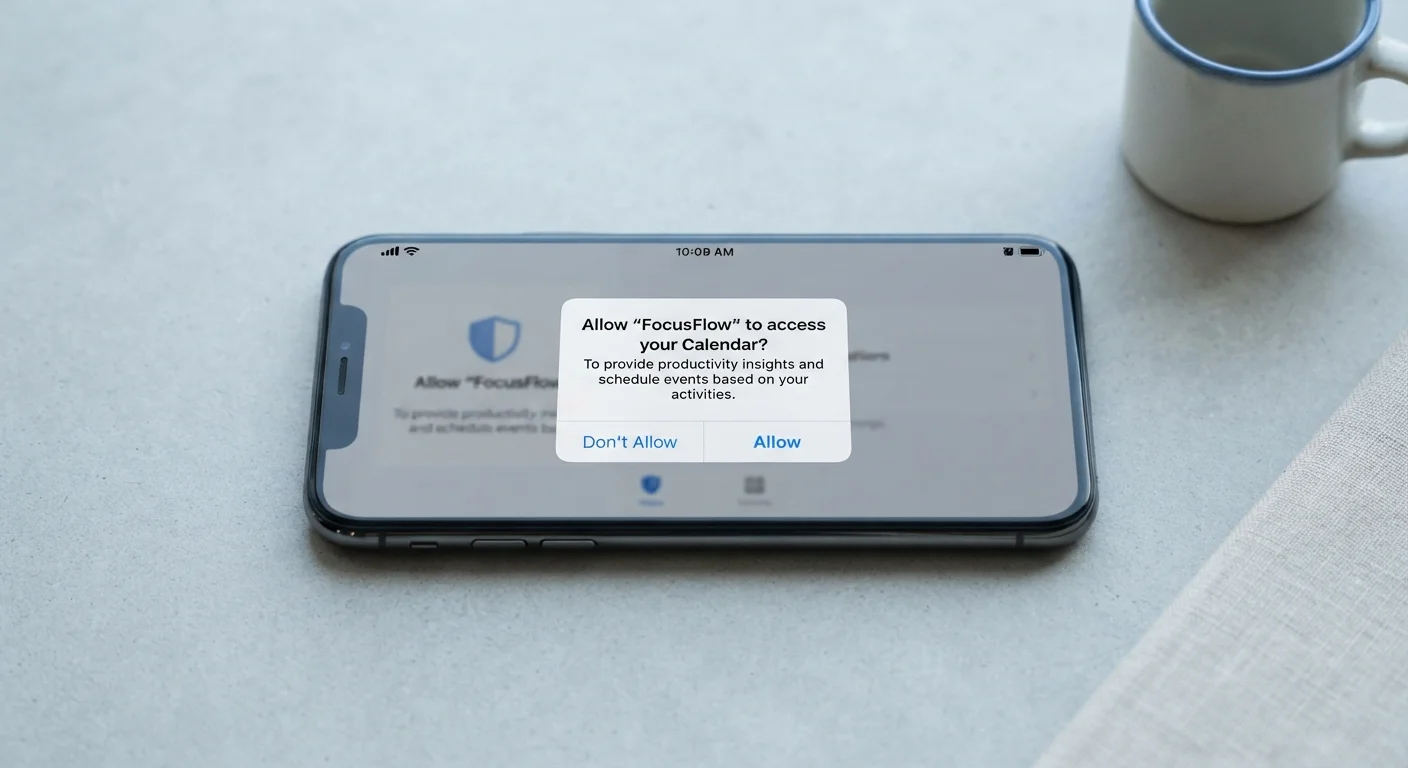
App permissions are requests an application makes to access specific features or data on your device - things like your camera, contacts, or location. When you install or first open an app, your phone's operating system asks whether you want to grant or deny that access. Granting a permission gives the app a direct pipeline to that part of your device and, in many cases, the data stored there.
On both Android and iOS, permissions are enforced at the operating system level, meaning the app itself cannot bypass a denial. However, some permissions grant broader data access than their label suggests.
Why the Permission Prompt Is More Than a Formality
Most people tap "Allow" on app permission requests the same way they skip a terms-of-service screen - quickly and without much thought. That reflex is understandable, but permissions are meaningfully different from boilerplate legal text. Each one opens a specific door into your device, and understanding what's behind each door changes how you think about the apps you use every day.
Permissions are controlled at the operating system level, which is actually a consumer protection. Neither Android nor iOS will let an app sneak past a denial. But the flip side is that once you grant a permission, it typically stays active indefinitely - the app retains that access until you go into settings and turn it off manually.
Permissions Persist After You Stop Using an App
Many people assume that closing or ignoring an app ends its data access. That's not how it works. Permissions granted during installation stay active until you explicitly revoke them in your device settings. An app you haven't opened in a year may still have location, contacts, or camera access unless you've manually removed it.
What Each Common Permission Actually Accesses
Location is one of the most sensitive permissions because it exists on a spectrum. "Precise location" gives an app your GPS coordinates - accurate enough to identify your home, workplace, and daily routine over time. "Approximate location" narrows it to a general area, roughly the size of a neighborhood. Most apps that need location for basic functions - say, showing nearby results - can operate just fine with approximate access.
Contacts sounds personal, and it is. Granting this permission gives an app access to every name, number, email address, and note stored in your phone's address book - including data about people who never agreed to share their information with that app.
Camera and Microphone permissions allow the app to activate those sensors while the app is open (or always, if you chose that option). Neither sensor is streaming 24/7 by default, but the access window is real. A video-calling app needs both; a weather app asking for either is a red flag worth questioning.
Photos / Media Storage may mean the app can view your entire camera roll, not just the one photo you're trying to share. Newer iOS and Android versions now allow "selected photos only" access, which is worth using when available.
Bluetooth permissions, added more explicitly in recent Android and iOS versions, can be used to detect nearby devices - which has legitimate uses (pairing headphones) but also enables proximity tracking in physical spaces like retail stores.
45%
Apps requesting permissions beyond core functionality
A study by the International Computer Science Institute found that a substantial portion of Android apps requested permissions that were not clearly necessary for their stated purpose.
3 tiers
Location access levels available on modern iOS and Android
Both platforms now offer precise, approximate, and 'never' options for location - a meaningful privacy upgrade from the earlier binary allow/deny choice.
1 in 3
Smartphone users who review app permissions regularly
Surveys on digital privacy habits consistently show most users do not revisit permissions after initial installation, leaving outdated access in place.
The Gap Between the Label and the Reality
Permission labels are intentionally short, but what they cover is often broader than the words suggest. "Contacts" access, for example, doesn't just mean the app can display your friends' names - it means the app can read that data and, depending on its privacy policy, transmit it to external servers. Once data leaves your device, how it's stored, shared, or sold is governed by the app's own policies, not your phone's settings.
This is worth pairing with an understanding of how apps are used more broadly. For context on the time and attention dimension, see our look at what screen time tools track and miss.
It's also worth knowing that permissions are not binary on modern phones. For location, you can choose "while using," "always," or "never." For photos, you can grant access to specific images rather than your whole library. Choosing the most restrictive tier that still lets the app do what you need is a reasonable default approach.
How to Do a Permissions Audit on Your Phone
Both major mobile operating systems make it straightforward to review what you've already granted. On an iPhone, go to Settings > Privacy & Security and select any category - Location Services, Microphone, Camera, and so on - to see a list of every app with that access. On Android, the equivalent is Settings > Privacy > Permission Manager.
A useful audit habit: look for apps you haven't opened in months that still hold active permissions. A flashlight app that you downloaded two years ago and barely use doesn't need ongoing contacts or location access. Revoking unused permissions costs nothing in functionality and reduces the surface area of data those apps can reach.
For households sharing a device or a family plan, permissions audits are especially relevant - one family member's settings don't automatically protect another's data. For more on what shared plans involve, family plan structures come with assumptions worth understanding before you add lines or share an account.
Start With the Most Sensitive Permissions First
When auditing your phone, prioritize the Location Services, Microphone, and Camera categories first - these have the highest potential for privacy impact. Look for any app where the access level doesn't match the app's obvious function, and consider downgrading from 'always' to 'while using' wherever possible. You can always grant more access later if an app genuinely needs it.