
Wired vs. Wi-Fi Connections at Home: Speed, Reliability, and Practical Trade-offs

Key Takeaways
Option A
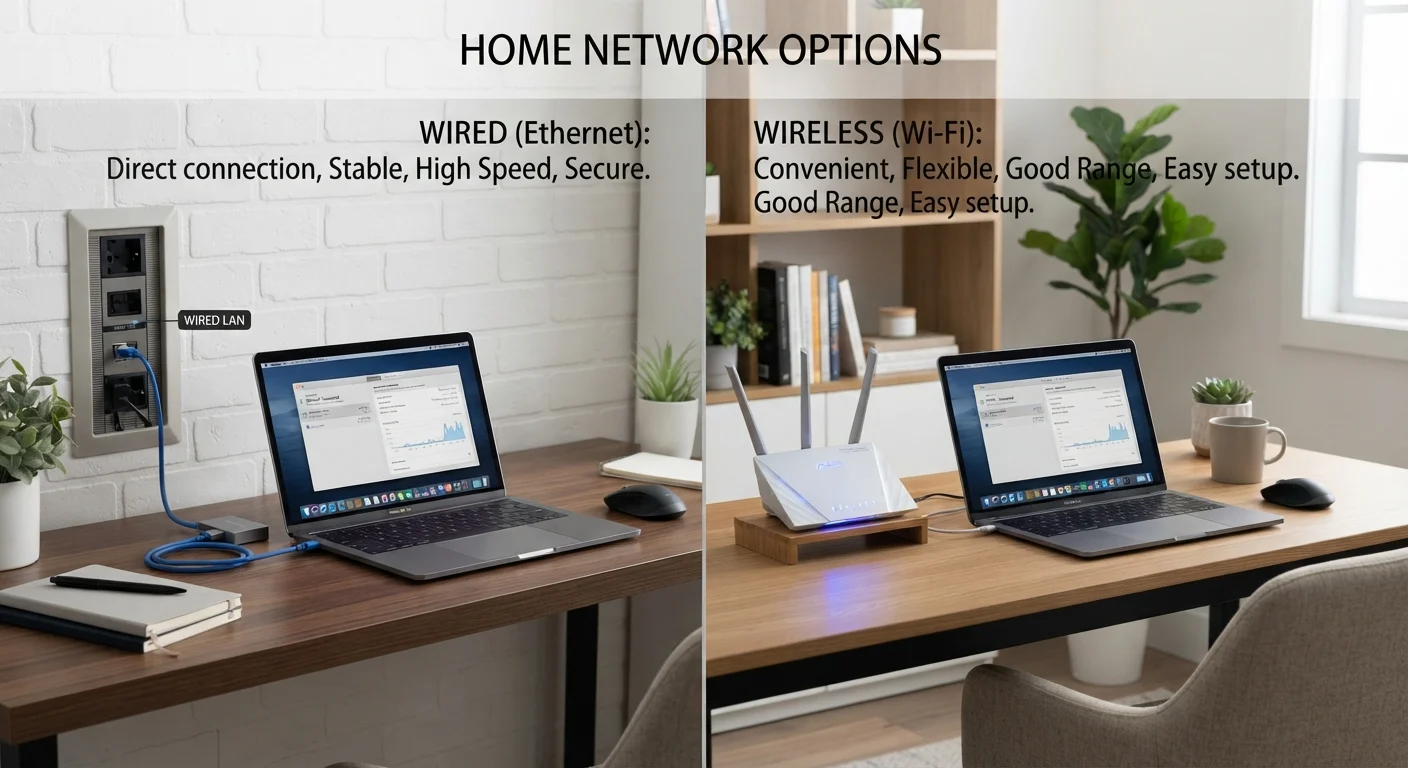
Wired (Ethernet) Connection
The stable, high-performance choice for stationary devices.
Best for: Desktops, gaming consoles, smart TVs, and any device that stays in one place and demands consistent speed.
Option B
Wi-Fi Connection
The flexible, cable-free option for mobile and everyday devices.
Best for: Laptops, smartphones, tablets, and smart home devices that move around or can't easily reach a cable.
If you work from home and rely on stable video calls
Wired (Ethernet) Connection
Ethernet eliminates the packet loss and signal drops that can disrupt video conferencing. A direct cable connection keeps latency low and bandwidth consistent throughout the workday.
If you use phones, tablets, or laptops throughout the house
Wi-Fi Connection
Mobile devices aren't practical to run via cable. Modern Wi-Fi standards - particularly Wi-Fi 6 - handle multiple devices well enough for browsing, streaming, and casual use.
If you're a gamer or stream 4K video on a dedicated TV or console
Wired (Ethernet) Connection
Gaming and 4K streaming are sensitive to latency spikes and bandwidth fluctuation. A wired connection removes those variables and delivers a noticeably smoother experience.
If you rent or can't run cables through walls
Wi-Fi Connection
When physical cabling isn't practical, a well-placed router or mesh system can deliver reliable wireless coverage without any permanent installation.
If you want to connect smart home devices like bulbs, thermostats, or cameras
Wi-Fi Connection
Smart home devices are designed for wireless networks and typically don't require the speeds or latency levels that would justify a wired connection.
How Each Connection Actually Works
An Ethernet connection runs a physical cable - typically a Cat5e, Cat6, or Cat6a cable - from your router or modem directly to a device. The signal travels over copper wire, isolated from the radio interference that affects wireless signals. Speeds over Gigabit Ethernet (Cat6 or newer) can reach 1,000 Mbps under ideal conditions, and the connection behaves predictably regardless of what other devices are doing nearby.
Wi-Fi transmits data over radio frequencies - primarily 2.4 GHz and 5 GHz bands (and 6 GHz on newer Wi-Fi 6E routers). Every device on your network shares that airspace. Walls, appliances, neighboring networks, and even microwave ovens can degrade the signal. The further a device sits from the router, the weaker and less consistent that connection becomes.
For a plain-English breakdown of how these fit into the broader picture of home internet types, see our guide to home internet types and jargon.
| Criterion | Wired (Ethernet) | Wi-Fi |
|---|---|---|
| Typical home latency | 1-5 ms | 10-50 ms (varies) |
| Speed consistency | Very stable | Variable with distance and interference |
| Maximum practical speed | Up to 1 Gbps (Cat6) | Up to ~1.2 Gbps (Wi-Fi 6, close range) |
| Susceptibility to interference | None from radio sources | Moderate to high in dense areas |
| Device mobility | Stationary only | Full mobility |
| Setup complexity | Requires cable runs | Plug-and-play router |
| Security exposure | Lower (physical access needed) | Higher (signal extends beyond walls) |
| Best for | Gaming, video calls, desktops | Phones, tablets, smart home devices |
Speed and Latency: Where the Real Difference Shows Up
Raw speed numbers from your ISP plan are largely the same whether you connect via cable or Wi-Fi - both methods can technically carry a gigabit signal. The meaningful difference shows up in latency (the delay between a request and a response) and consistency (whether those speeds hold steady over time).
Ethernet latency in a home network typically runs between 1-5 milliseconds. Wi-Fi latency on a congested or distant connection can climb to 20-50 ms or higher. For video calls, online gaming, or anything real-time, those extra milliseconds add up in noticeable ways.
1-5 ms
Typical Ethernet latency in home networks
Wired connections maintain low, stable latency regardless of how many devices are active on the network.
20-50 ms
Wi-Fi latency under moderate congestion
Latency climbs when devices compete for airtime or when walls and distance reduce signal strength.
40-60%
Throughput loss at range in typical homes
Wi-Fi devices two or more rooms from the router often achieve significantly less than the maximum available bandwidth.
Wi-Fi speed also varies with distance and obstacle density. A device two rooms away from the router might achieve only 40-60% of the throughput available at close range. Ethernet doesn't degrade with distance within a home - a 100-foot Cat6 cable performs essentially the same as a 10-foot one.
If your speeds already feel slow regardless of connection type, the issue may be upstream. Our article on why your internet feels slower than advertised explains where those gaps typically come from.
Reliability and Interference
Ethernet's physical isolation is its biggest practical advantage for reliability. No neighbors can crowd your cable. No firmware update on a nearby device can disrupt it. Barring a damaged cable or faulty port, a wired connection stays on.
Wi-Fi reliability depends on factors that are partly outside your control. Channel congestion in apartment buildings - where dozens of networks compete for the same frequencies - can cause speed dips and intermittent drops. The 5 GHz band offers faster speeds but shorter range; the 2.4 GHz band reaches further but is more congested. Newer Wi-Fi 6 routers handle congestion better through a technology called OFDMA, but they don't eliminate it.
For households that regularly experience unexplained wireless drops, our piece on what causes Wi-Fi to keep dropping covers the most common culprits and fixes. And if you want to get more from your existing wireless setup, router placement and network habits make a measurable difference.
A Note on Mesh Systems and Wi-Fi Extenders
Mesh Wi-Fi systems place multiple access points throughout a home to reduce dead zones and distribute load. They can significantly improve whole-home wireless coverage compared to a single router. Wi-Fi extenders also extend range but can introduce a speed penalty since they relay traffic - mesh systems with a dedicated backhaul channel generally avoid that trade-off. Neither replaces the consistency of Ethernet for performance-critical devices.
Practical Considerations Before You Decide
Switching to Ethernet isn't always straightforward. Running cables through finished walls requires drilling, routing through conduit, or using surface-mounted cable raceways. In rented spaces, those options may be limited or prohibited. Powerline adapters - devices that send network signals through your home's existing electrical wiring - offer a middle ground, though their performance varies with wiring quality and circuit load.
Cable quality also matters. Older Cat5 cables cap out at 100 Mbps, which could bottleneck a gigabit plan. Cat5e and Cat6 are the current practical standards for home use; Cat6a is worth considering if you're running cable inside walls and want headroom for future speeds.
On the Wi-Fi side, router placement has an outsized effect on performance. A router tucked inside a cabinet or placed in a far corner of the home will underperform one positioned centrally at an elevated height. Many households with persistent Wi-Fi issues find a better router location solves more problems than upgrading hardware.
Understanding how advertised speeds translate (or don't) into real-world performance is also worth knowing before making any hardware changes - our explainer on internet speed myths that lead households to overpay is a practical starting point.