
Getting the Most Out of Your Home Wi-Fi: Placement, Interference, and Network Habits

Key Takeaways
Why Router Placement Changes Everything
Most households set up their router wherever the technician left it - usually near the front door or a utility closet - and never move it again. That's understandable, but it's also one of the most common reasons Wi-Fi underperforms. A router radiates signal outward in all directions, so placing it near a wall or in a corner wastes a large portion of that coverage on the outside of your home.
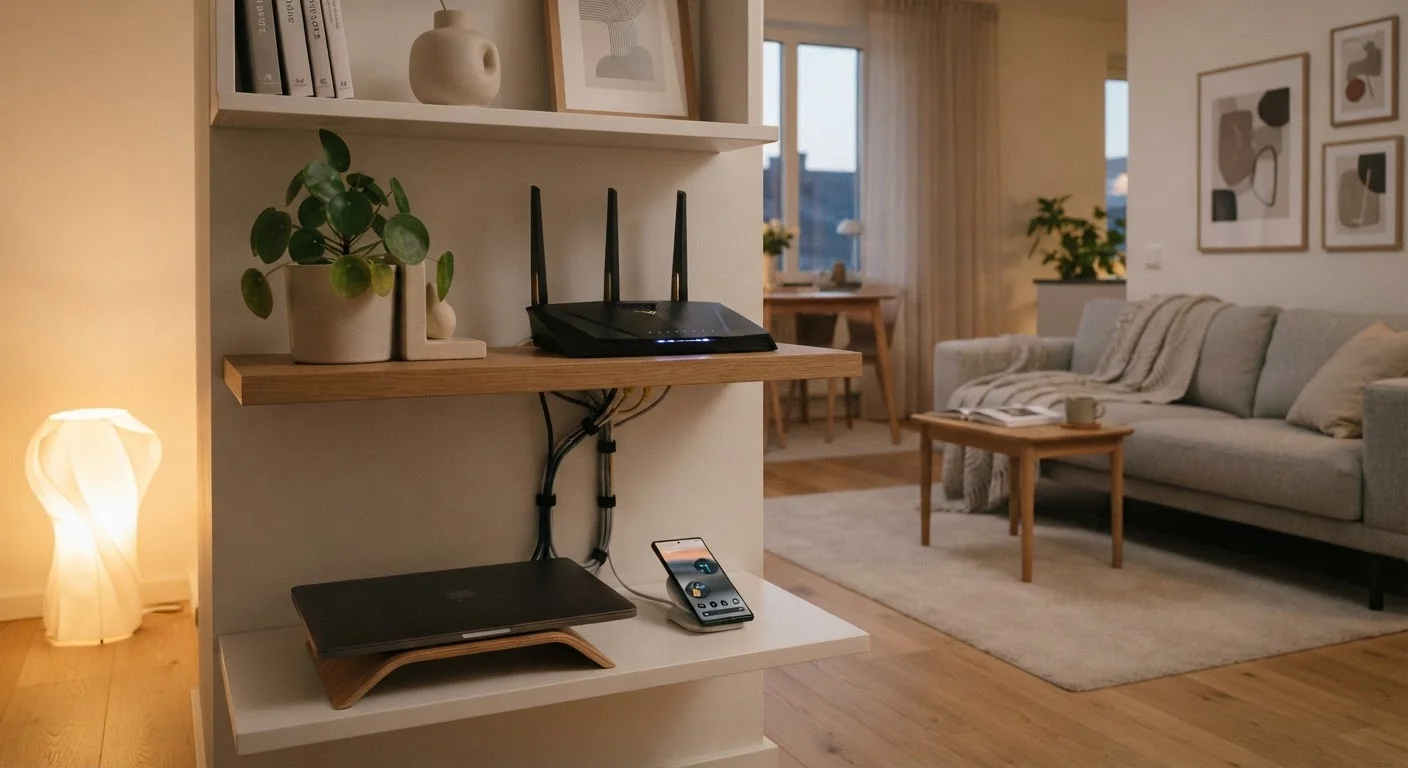
For the best results, position your router as close to the center of your home as practical. Elevating it - on a shelf rather than the floor - also helps, since Wi-Fi signals tend to broadcast slightly downward. Keep it away from dense obstructions: concrete walls, large appliances, and metal surfaces all absorb or reflect radio waves. Microwaves and baby monitors can actively interfere with 2.4 GHz signals, so physical separation from kitchen equipment matters more than many people expect.
If your home is large or has multiple floors, a single router placed well still may not be enough. Wired connections to a secondary access point or a mesh system can extend reliable coverage without the signal degradation that comes from Wi-Fi extenders daisy-chaining off a weak source signal.
Test Signal Strength Before and After Moving the Router
Before repositioning your router, note the signal strength (shown in bars or dBm) on a device in your most problematic room. After moving the router, check again from the same spot. Most phones display this in their Wi-Fi settings or in a free analyzer app. Concrete data makes it easier to confirm whether the change actually helped.
Managing Channel Congestion and Band Selection
Routers broadcast on radio channels, and in dense neighborhoods or apartment buildings, dozens of nearby networks may be competing on the same channels. This is channel congestion, and it can slow your connection even when your plan speed and hardware are both adequate.
Most modern routers operate on two frequency bands: 2.4 GHz and 5 GHz. The 2.4 GHz band travels farther and passes through walls more easily, but it has fewer non-overlapping channels and is shared by many more devices and networks. The 5 GHz band is faster and less congested but has a shorter effective range. Connecting devices that are physically close to the router - streaming boxes, gaming consoles, laptops in the same room - to the 5 GHz band frees up 2.4 GHz for devices that genuinely need the range.
Many routers allow you to manually select which channel they broadcast on. Free tools like Wi-Fi analyzer apps (available for Android and desktop) can show you which channels neighboring networks are using, helping you pick a less crowded one. This is a low-effort adjustment that can produce a noticeable improvement in congested environments. For context on why your real-world speeds may still differ from what your ISP advertises, see our article on why home internet feels slower than your plan.
Wi-Fi 6 and Band Congestion
Routers marketed as Wi-Fi 6 (802.11ax) include technologies like OFDMA that handle multiple simultaneous connections more efficiently, which can reduce congestion in households with many connected devices. However, both your router and your device need to support Wi-Fi 6 to benefit from these improvements. Older devices will still connect - they just won't gain the newer protocol's advantages.
Network Habits That Protect Performance
Hardware and placement set the ceiling for your Wi-Fi performance, but how your household uses the network determines how close you get to that ceiling during peak hours.
Schedule large downloads and updates during off-peak hours.
Automatic updates for gaming consoles, operating systems, and streaming apps can consume significant bandwidth. Running them overnight avoids competition with video calls and streaming during active household hours.
Use Quality of Service (QoS) settings on your router to prioritize critical traffic.
QoS - a feature available on many consumer routers - lets you tell the router which types of traffic matter most. Prioritizing video conferencing over file downloads means calls stay stable even when others are streaming.
Restart your router periodically to clear memory and refresh connections.
Routers manage many simultaneous connections and can accumulate errors in memory over time, leading to slower speeds and dropped connections. A monthly restart takes under two minutes and often resolves unexplained slowdowns.
Connect stationary, high-bandwidth devices via Ethernet where possible.
Wired connections are more stable and faster than Wi-Fi for devices that don't need to move. Removing high-demand devices from the wireless network reduces congestion for devices that genuinely require Wi-Fi.
Keep router firmware updated to maintain security and performance.
Manufacturers release firmware updates that fix bugs, patch security vulnerabilities, and sometimes improve how the router manages traffic. An outdated router may be slower and less secure than it could be.
Beyond the individual device level, it's worth periodically auditing what's connected to your network. Smart home devices, old tablets, and forgotten streaming sticks all maintain background connections that consume small amounts of bandwidth continuously. Removing devices you no longer use - or segmenting them onto a guest network - keeps your primary network less cluttered. Our guide to keeping your home network secure covers network segmentation and other practical steps that improve both security and performance.
If congestion remains a persistent problem even after these adjustments, it may point to a plan mismatch rather than a Wi-Fi problem. Common myths about internet speed explores how households often misread their needs - sometimes paying for more than necessary, sometimes not enough.